From Spreadsheet to Loaded Truck: A Practical Guide to the Truck Packer API
How the Truck Packer REST API works, with copy-paste code, the Y-up gotcha, batching and rate-limit tips, and a live demo pack you can open in the 3D editor.

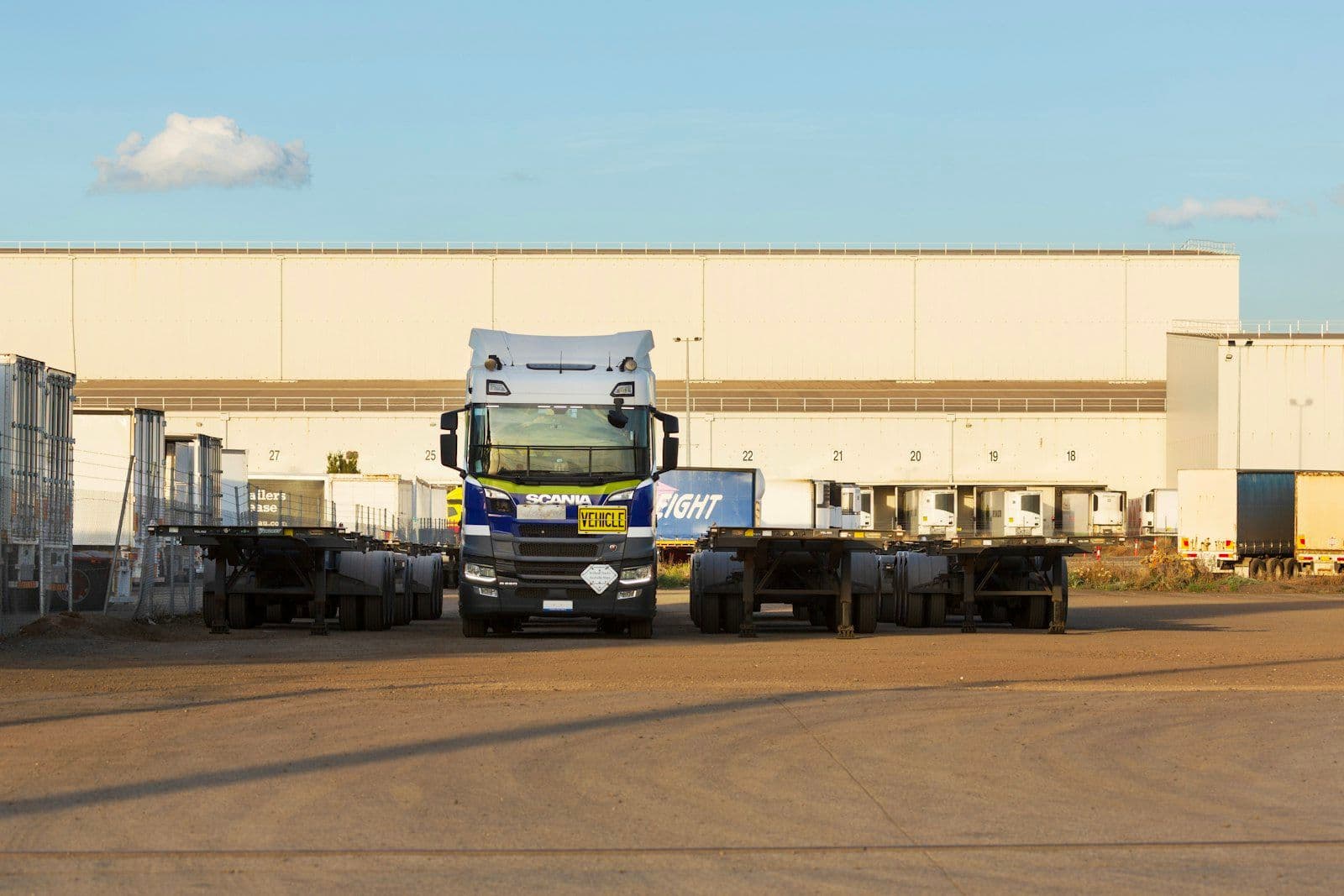
Most crews build load plans by hand: drag a case into the 3D truck, nudge it into a row, repeat. That is fine for a one-off. It is not fine when your gear already lives in a rental system, a pull sheet, or a spreadsheet and you just want the truck to reflect it. That is what the Truck Packer REST API is for. You send it your cases and it builds the pack for you, then you open the result in the 3D editor and clean it up.
Here is how it actually works, with real requests you can copy.
The shape of the API
Four resource types cover the whole model, documented in full on the API reference:
- Cases are box-type definitions (a rack, a workbox, a pelican), each with a length, width, and height in meters and a weight in kilograms.
- Containers are the trucks and trailers you load into, keyed to a type like
dry_van_trailerorflatbed_trailer. - Packs are the load plans themselves, the workspace where cases sit inside a container.
- Entities are the positioned items inside a pack: a case at a specific X, Y, Z with a size and rotation.
Everything is metric (meters and kilograms), the base URL is https://steady-beagle-345.convex.site/api/v1, and every response comes back wrapped as { "success": true, "data": ... }.
Authentication
You generate a key from Settings, API Keys inside the Truck Packer app, and it looks like tp_.... Every request carries it as a bearer token. Your organization is inferred from the key, so you never pass an org ID:
`bash
export TP_API_TOKEN="tp_your_key_here"
BASE="https://steady-beagle-345.convex.site/api/v1"
`
Keep the key server-side. Anyone holding it can read and write your whole packing library.
Build a pack in three calls
A load plan is a pack, plus a container, plus your cases positioned inside it. Start by creating the pack:
`bash
curl -s -X POST "$BASE/packs" \
-H "Authorization: Bearer $TP_API_TOKEN" \
-H "Content-Type: application/json" \
-d '{"name":"API Demo: FOH Rack Load"}'
{"success":true,"data":{"_id":"jn7bvcfsts77eskvp0dvdbm4sh89wcr0"}}
`
That _id is your pack. Now add the geometry. Entities are created in a single batch call, and the first entity should be the truck. A 53-foot dry van is 16.154m long, 2.591m wide, and 2.743m tall. One catch worth internalizing: Truck Packer is Y-up, so X is length down the trailer, Y is height, and Z is width. Position is the center point of the item, which means to sit a case on the floor you set its Y to half its own height.
`python
import json, urllib.request
BASE = "https://steady-beagle-345.convex.site/api/v1"
TOKEN = "tp_your_key_here"
PACK = "jn7bvcfsts77eskvp0dvdbm4sh89wcr0"
entities = [{
"name": "53' Dry Van Trailer", "type": "container", "packId": PACK,
"visible": True, "childrenIds": [],
"position": {"x": 16.154/2, "y": 2.743/2, "z": 2.591/2},
"quaternion": {"x": 0, "y": 0, "z": 0, "w": 1},
"size": {"x": 16.154, "y": 2.743, "z": 2.591},
"containerData": {"type": "dry_van_trailer"},
}]
Lay three amp racks flush across the width in the first row
z = 0.0
for i in range(3):
entities.append({
"name": f"Amp Rack {i+1}", "type": "case", "packId": PACK,
"visible": True, "childrenIds": [],
"position": {"x": 0.71/2, "y": 1.9/2, "z": z + 0.71/2},
"quaternion": {"x": 0, "y": 0, "z": 0, "w": 1},
"size": {"x": 0.71, "y": 1.9, "z": 0.71},
"caseData": {"weight": 180, "canRotate3d": False,
"categoryId": "YOUR_CATEGORY_ID"},
})
z += 0.71 # next case starts where the last one ended, no gap
req = urllib.request.Request(BASE + "/entities:batchCreate",
data=json.dumps({"entities": entities}).encode(),
headers={"Authorization": "Bearer " + TOKEN,
"Content-Type": "application/json"}, method="POST")
print(urllib.request.urlopen(req).read().decode())
`
Run that and the API reference confirms you get back the new entity IDs. The finished pack opens directly in the editor at app.truckpacker.com/packs/{id}. The one this code produced is live here: app.truckpacker.com/packs/jn7bvcfsts77eskvp0dvdbm4sh89wcr0. Open it and you are looking at a real trailer with three racks in the front row, ready to keep loading.
Practical guidelines
A few things save time once you move past the first request.
Set `canRotate3d` deliberately. It defaults to false, which is correct for almost everything on a tour: racks, consoles, and most road cases have to stay upright. Only flip it to true for items you genuinely tip on their side.
Position, do not just create. The API will happily accept every case stacked at the origin, but that is not a load plan, it is a pile. Build in rows across the width (Z), keep cases flush with zero gaps, fill the floor with big items before stacking small ones on top, and leave a small gap every 8 to 16 feet where a load bar would go. The result is a pack a crew can actually follow.
Respect the limits. A pack holds at most 600 entities, and you are capped at 200 requests per minute (300 burst). A 429 response includes a retryAfter value, so back off on that rather than hammering.
Batch, do not loop. Entities are created, updated, and deleted in batches. One call with fifty cases beats fifty calls with one case each, and it keeps you well under the rate limit.
Why bother
The point is not to replace the editor. It is to skip the data entry. If your inventory already exists somewhere, a rental platform, a carnet list, a vendor pull sheet, the API turns that list into a positioned truck in seconds, and the editor is where you make it real. The full endpoint reference, including containers, case categories, and text labels, lives in the Truck Packer docs.
Ready to build your load plan? Log in to Truck Packer and pack it.

