One QR Code Per Truck: What Shipped in Truck Packer v0.10.2
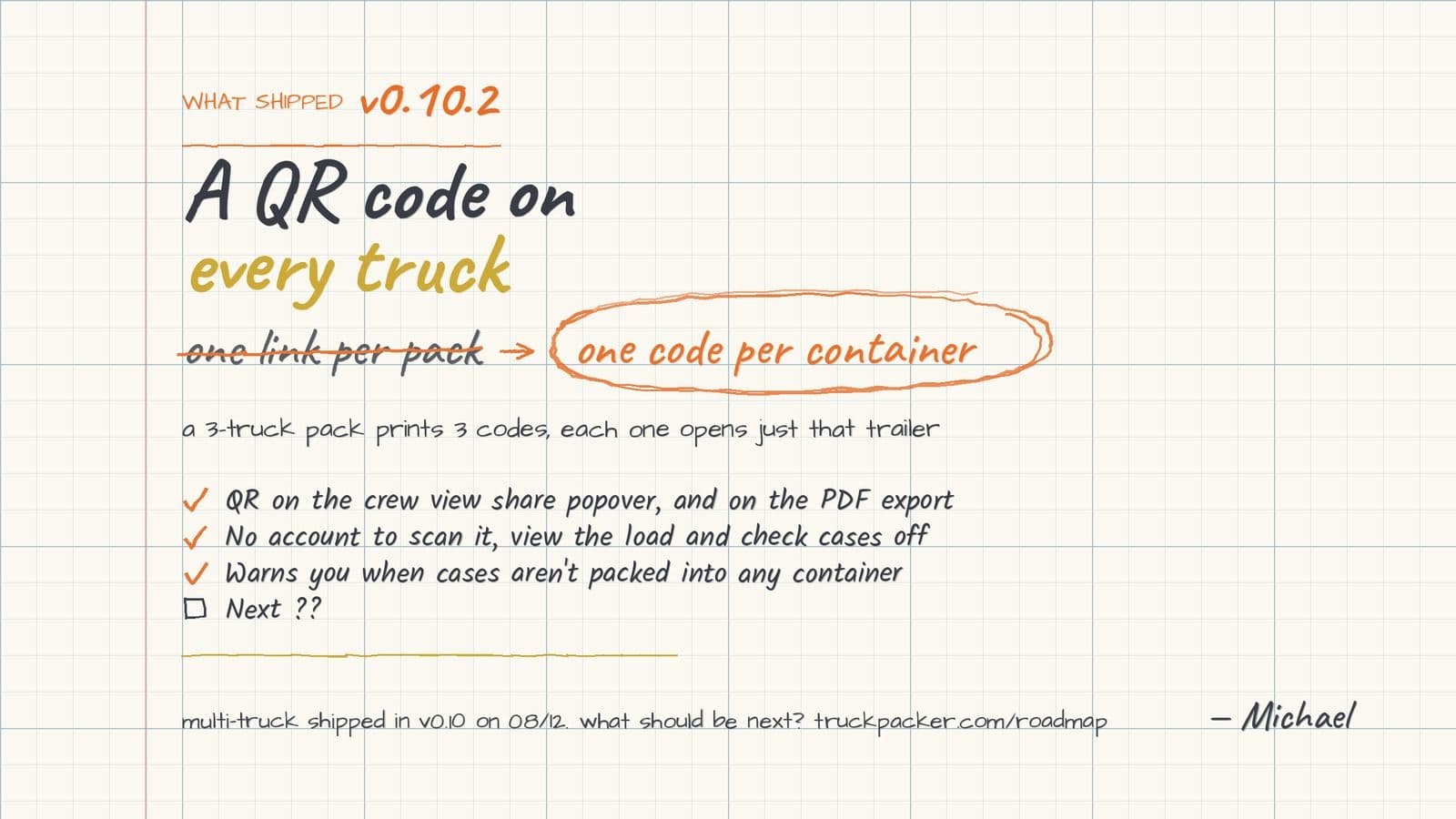
v0.10.2 puts a QR code on the crew view share button and on the PDF export, generated per container. A three-truck pack prints three codes, each one opening just that trailer's load list, no account needed to scan it.

Every load-out has the same moment in it. You walk up to a truck somebody else packed, the top layer is all you can see, and the person who built the pack is on a different truck or already gone. The plan exists. It's on a laptop back in production, or on a sheet folded into somebody's back pocket, and neither of those is where you're standing.
v0.10.2 is a small release, one line in the notes, but it's the line that closes that gap. There's a QR code on the crew view now.
What actually shipped
Open a pack, hit Share, and the code sits in the popover right under the link. Somebody can scan it off your laptop while you're both standing at the door. It also prints on the PDF export, which is the version that gets used in practice, because the sheet is already going in the truck. Print it, tape it inside the door, and anybody who walks up can point a phone at it.
Whoever scans it doesn't need an account and doesn't install anything. The share popover says it plainly: anyone with the link can view the pack and check off items. Day hands, local crew, the driver, they all get the same crew view you already build, including the checklist and the slider that walks the load in order.
That last part is worth saying twice. It's not a read-only picture of the pack. They can tick cases off as they go, so the checkbox state is shared, not stuck on your machine.
One code per truck
Here's the piece that matters if you run more than one truck: the code is generated per container, not per pack. A pack with three trailers in it produces three different codes, and each one opens just that trailer's load list. Right code inside the right door, and nobody is scrolling past two other trucks looking for their own.
Multi-truck packing shipped in v0.10 on August 12, on Business accounts, along with the container library and the per-container crew views and PDFs. The solver side of that was the visible work. The quieter problem was distribution: a four-truck plan is only worth something if four different loaders can each see their own truck, and until now that meant you were printing four PDFs and handing them out by hand, or texting four links and hoping the right one landed with the right person.
A code taped to a door doesn't get handed to the wrong crew. It's attached to the truck it describes.
Also in this release
The notes list one item, but the same pull request carried a change you'll notice on the floor. Since v0.10, cases have to be explicitly assigned to a container to show up in the crew view and the PDF, which was a deliberate call rather than an oversight. The obvious failure mode is exporting a sheet that's quietly missing six cases nobody assigned.
So there's now a check for that. If you've got cases sitting outside every container, you get a dialog listing them, grouped, with a "Pack All Into" picker so you can drop them into a truck without backing out of what you were doing. If everything is assigned it just tells you so and gets out of the way. It's the kind of thing you only appreciate the one time it stops you from taping up a load list with the amp rack missing off it.
One thing to be aware of
Treat the code like the paper it's printed on. Anyone with the link can open the crew view, so a code taped inside a truck door is readable by anyone who opens that door. For a load-in that's the entire point. If a pack has something on it you'd rather not hand to a stranger, share the link deliberately instead of printing it.
What's next is still open
The roadmap still lists bus trailer support and non-packable zones as planned, and we'd rather build those from a real trailer than from a whiteboard. If either one is the thing standing between you and using this on an actual run, tell us which one goes first.
Ready to see what your crew would see? Log in to Truck Packer, open a pack, and hit share.

