One Pack, Four Trucks: What Shipped in Truck Packer v0.10
Truck Packer v0.10 is the biggest release since launch: multi-truck packing on Business accounts, a full container library, a loading dock inspector, per-truck crew views and PDFs, and AutoPack into the container you pick.

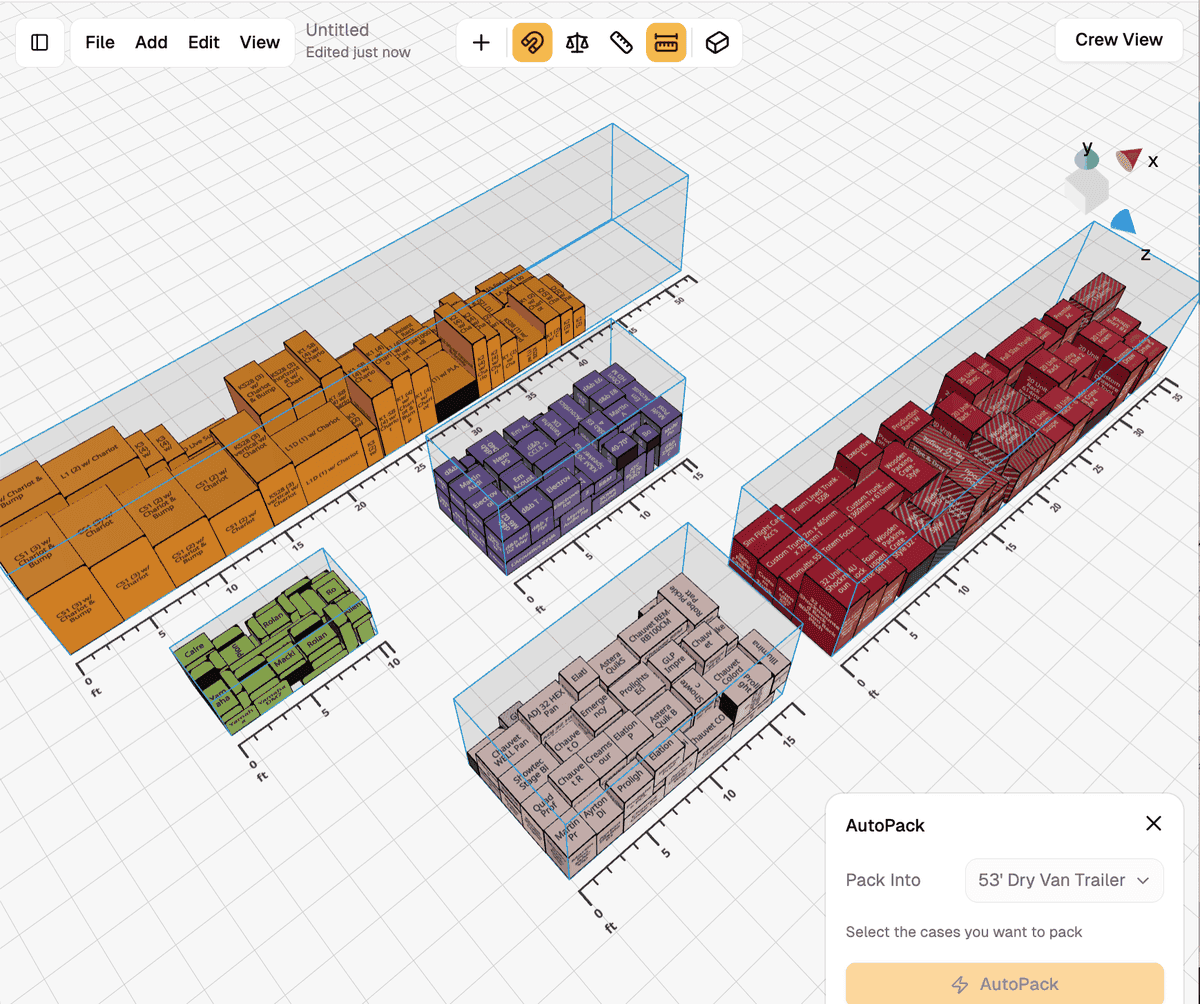
Since the day we launched, a pack in Truck Packer meant one truck. That was fine for a one-truck club run and quietly useless for anything bigger. If you were moving four trailers, you built four separate packs, opened four crew views, and kept the part that actually matters, which case rides in which truck, in your head or in a spreadsheet sitting next to the app.
v0.10 is the release that fixes that. It is the biggest one since launch, and it is already live in your account.
Multiple trucks, one pack
Business accounts can now put as many containers as the job needs into the same packing space and move cases between them. One pack is now the whole fleet, not one truck out of it. Every container carries its own color, so a glance at the scene tells you what is riding where, and the entities in the containers you are not working on get hidden so you can actually see what you are doing.
The REST API came along for the ride. You can place cargo inside a specific container with parentId, and it validates the parent on create and on update, so an integration cannot quietly drop a case into nothing. Multi-truck packing sits on the Business tier; everything else in this release works on every account.
A container library, so you stop building trailers by hand
There is a Containers tab in the library now, next to Cases, and a real container library behind it: dry vans, box trucks, flatbeds, shipping containers, air ULDs, pallets, rail cars and rental trucks, US and EU, ready to import into your org. New organizations start with a full set already in place. You can save your own presets, import them from a csv or xlsx the same way you do cases, and import or remove the whole library at once with an undo if you change your mind.
Drag and drop works out of the library too. Grab a 53 foot dry van or a road case and drop it straight into the packing space.
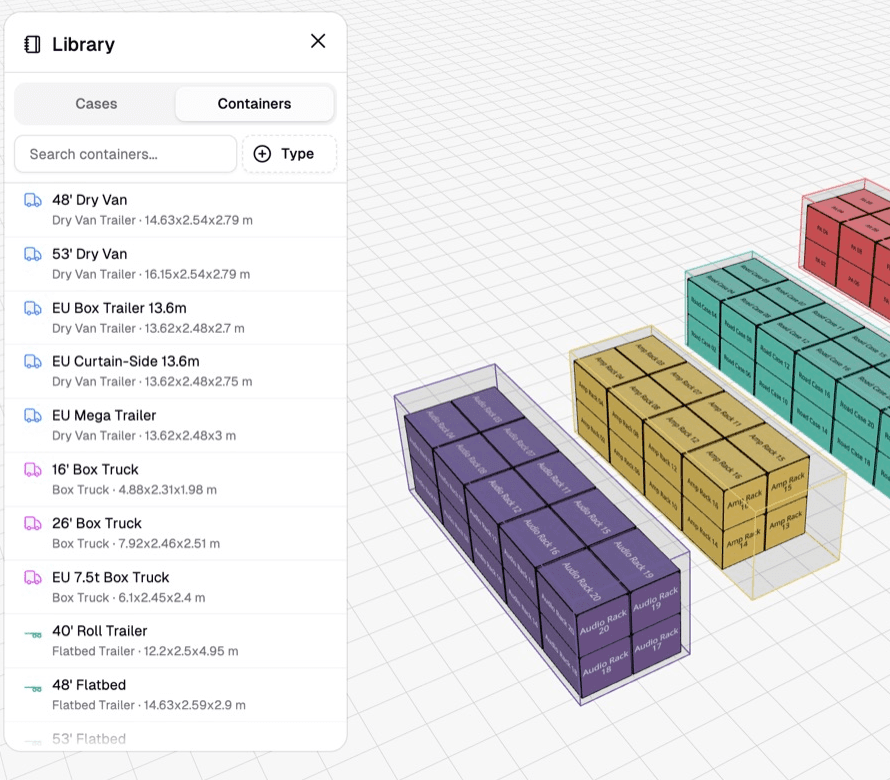
The Containers tab in the library, with the road and box truck presets that ship with every new organization.
The loading dock
The new loading dock inspector lists every case and every container in the pack and shows exactly what is packed into what. Assign or unassign a case from the inspector with "Packed in". It is the layer list the app has needed for a year.
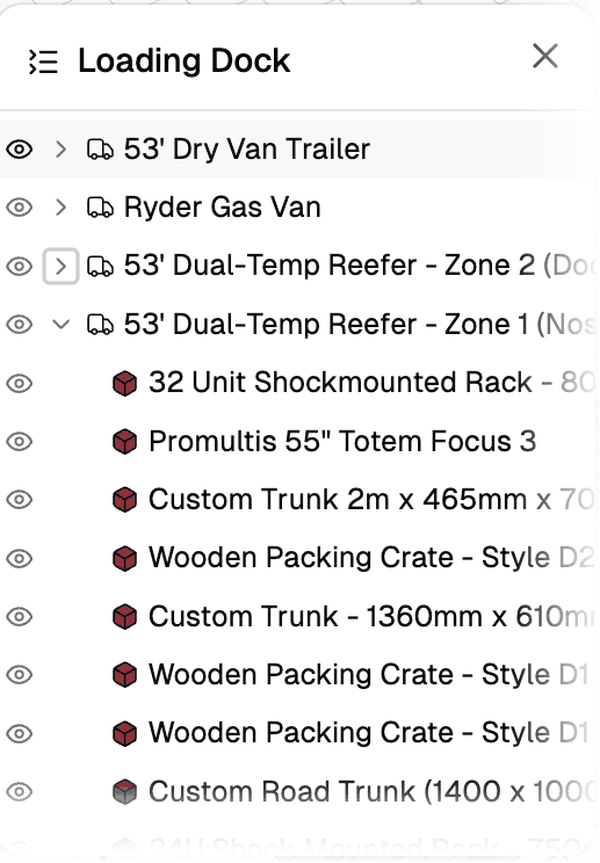
The loading dock lists every container in the pack and what is loaded into each one, and the eye toggles hide a truck you are not looking at.
The weight readout grew up with it. It now lists every container in the pack, click a row to select that truck, hover to highlight it, and it shows the weight of the cases that are not loaded yet, which is the number that tells you whether you are about to need another truck.
Crew view and PDF, per truck
Every container generates its own crew view, its own checklist and its own PDF export, and the container picker moved into the crew view header so you can switch trucks without backing out of the view. The header also shows the weight capacity used for the truck you are looking at. Packs with no container at all still get a crew view checklist.
AutoPack into the truck you pick
AutoPack now only packs the entities you selected, so it leaves the rest of the pack alone. When a pack has more than one container, it asks which one to fill.
The one change that will bite you
Cases now have to be explicitly packed into a container to show up in the crew view and the PDF export. That is the right behavior once a pack can hold four trailers, but if you open an old pack and the crew view looks light, that is why. Assign the cases in the loading dock or the inspector and it comes back.
Everything else
shift+a opens an Add menu now instead of immediately making a case, so you can pick a case or a container. File has an Open Recent list. The container ruler draws on every container and follows the container's color. Camera framing follows your selection, or frames every container when nothing is selected. The cases and containers tables both take a search and a type filter, containers match on their code as well, and you can pick which columns you see. Duplicating an org copies its container library. Plus the usual pile of fixes: z fighting on cases at the container edge, cases sliding below the ground during a multi-select move, flicker when grouping, the camera drifting when you switch between orthographic and perspective, and cmd+, not opening account settings.
If you want to see the multi-truck side running on your own gear before you decide anything, grab twenty minutes with me and I will walk you through it.
Ready to pack the whole fleet in one plan? Log in to Truck Packer and try it.

