Groups in AutoPack 2.0: Build a Rig Once, and It Packs the Way You Built It
Since v0.12, a group in Truck Packer is a packing instruction. AutoPack keeps its arrangement, sets it on the floor and packs around it. Here's how it works and which groups are worth building.

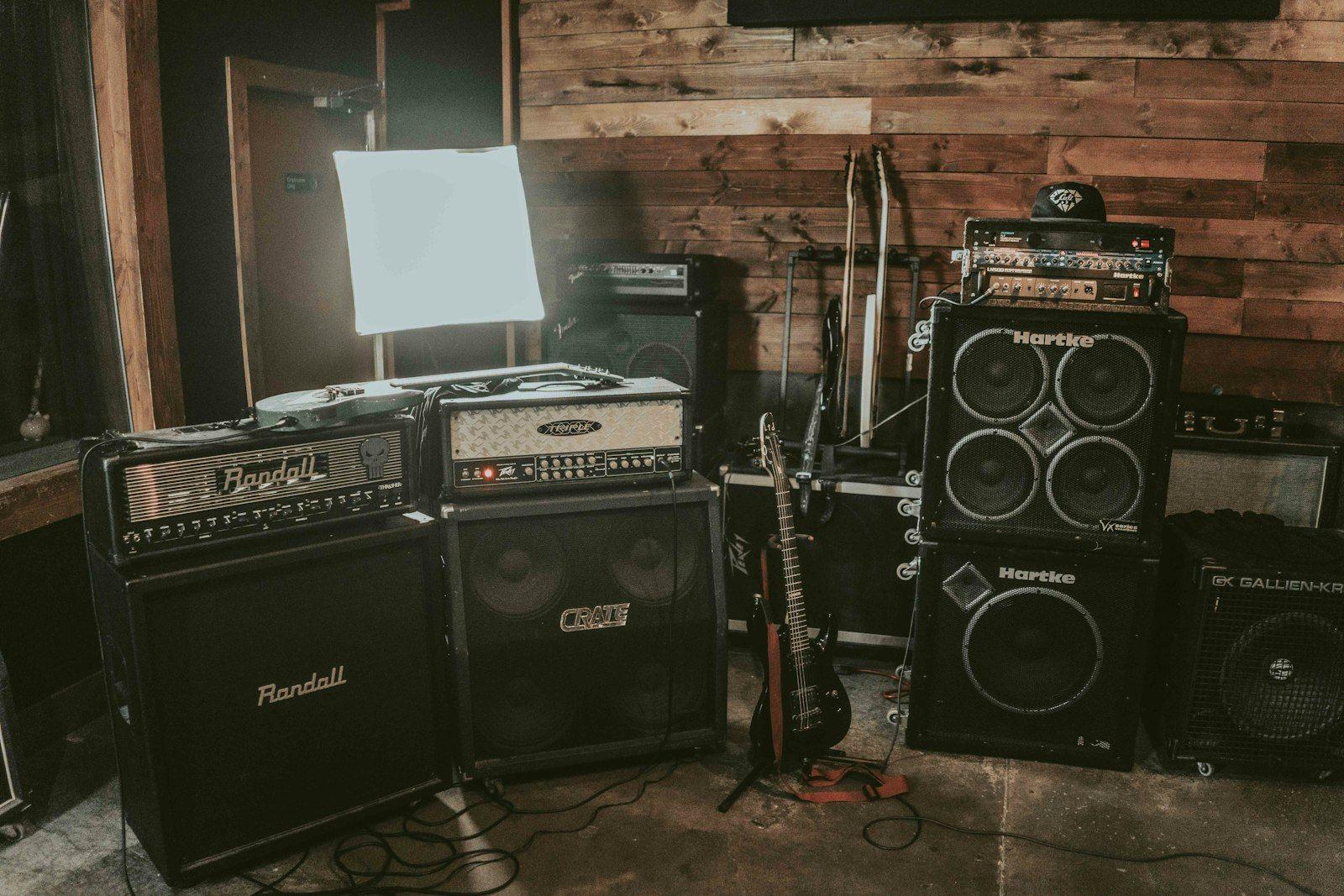
Groups in Truck Packer used to be a way to keep the scene tidy. Since v0.12 they're a packing instruction. Put cases in a group and AutoPack treats them as one rigid block: it keeps the arrangement you built, sets it on the floor, and packs everything else around it. If you've ever built monitor world in the shop and wanted it to roll onto the truck exactly like that, this is the post for you.
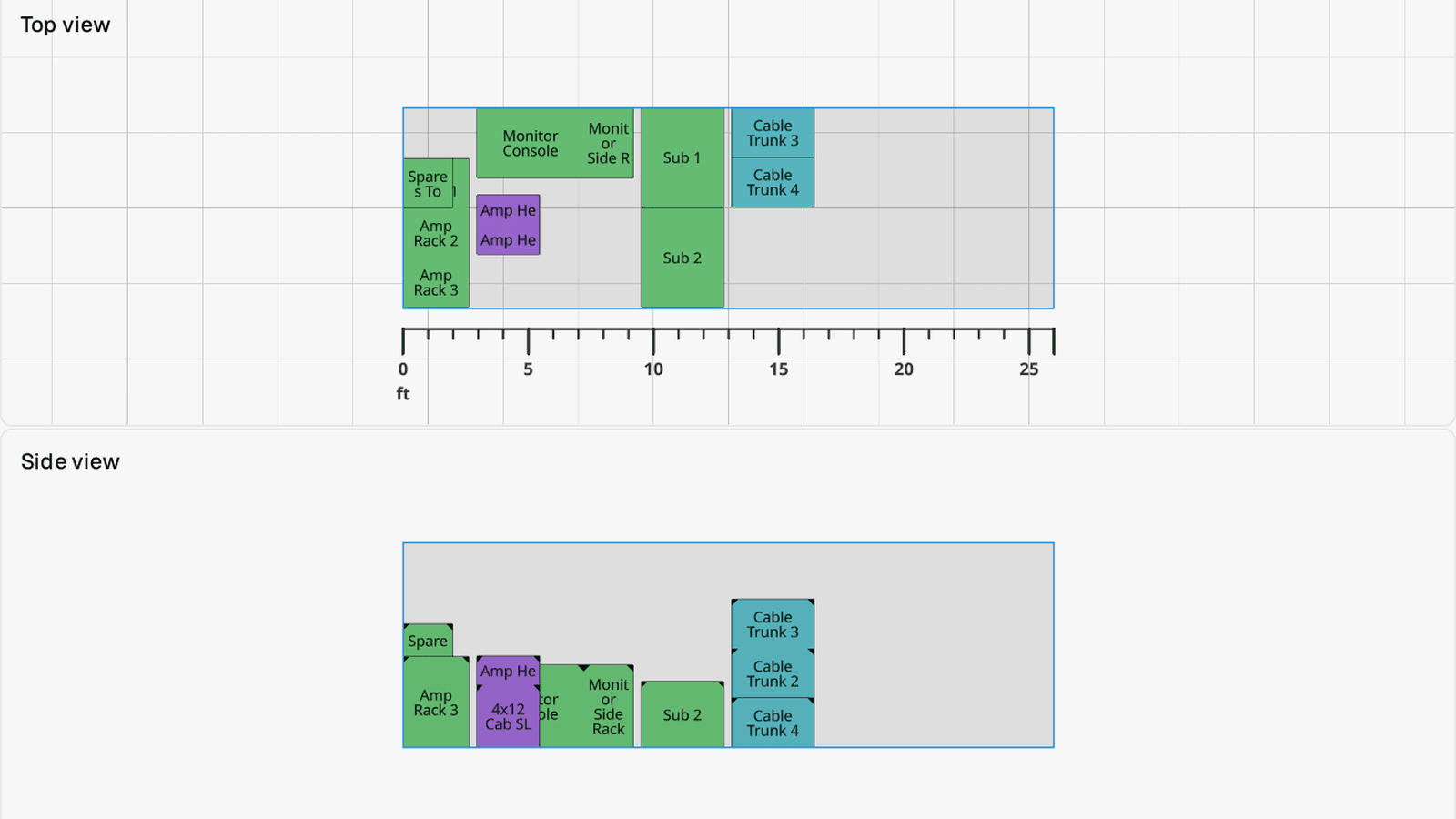
Crew view of the demo pack: an amp rack wall, monitor world and a guitar rig, each built as a group, plus loose subs and cable trunks.
What a group is now
Select a few cases and hit Ctrl+G (Cmd+G on a Mac) to group them. Hit it again with the group selected and they're ungrouped. That part hasn't changed. What changed in v0.12 is how a group looks and acts. A group no longer draws a bounding box around its cases. It's just the shared parent of everything in it, so you see your gear and not a wireframe around it.
Click any case in a group and you get the whole group, so it moves, turns and copies as one unit. Groups can sit inside other groups, and a click always picks the outermost one. That's what you want on a real pack: you grab "Guitar World", not one amp head out of the middle of it.
How AutoPack handles a group
When a group is part of an AutoPack run, the solver gets it as a single item. It keeps every case in the group exactly where you put it relative to the others. AutoPack can turn the block flat on the floor to find a better fit, but it never tips it on its side, and it always lands on the floor. Your rig comes out of AutoPack the way it went in, just in a different spot in the truck.
Cargo can still go on top of a group, and this is the part we spent the most time on. In an early build AutoPack saw a group as one big box, air included. So if your group was a tall rack next to a short one, AutoPack thought there was a flat lid across both and happily set a case on the air above the short one. We threw that out before release. AutoPack now sees each case in the group by its own size and height, so a case only lands on a real top. And a case in the group marked Nothing on Top keeps that rule, group or not.
Three groups I'd build on any tour
Here's the demo pack behind the shots above, a 26' box truck with three groups and some loose cases. It checks clean in the Constraint Validator, zero problems.
- The shop-built amp rack wall. Three amp racks side by side, 1.8 m across, built once in the shop. It goes in at the nose as one piece, and a spares tote rides on top of it.
- Monitor world. The monitor console and its side rack, side by side. The console is set to Nothing on Top, so nothing ends up on it even though the group itself has room around it.
- Guitar world. Two 4x12 cabs with the heads sitting on them, stage right and stage left. That's four cases that should never get split up between two different spots in the truck.
The subs and cable trunks stay loose. They're the gear you actually want AutoPack shuffling around, and their own rules (Floor Only on the subs, Stacks on Same with a Max Stack Count of 3 on the trunks) keep them honest.
When not to group
Groups always go on the floor and never break apart, so don't group the filler. A pile of cable trunks or a stack of mic cases is the stuff that fills the gaps at the end of a load, and AutoPack can only do that with cases it's allowed to move one at a time. Group them and you've handed AutoPack one big block where it needed a handful of small ones. Leave them loose and let their stacking rules do the work.
If you lock a case inside a group, AutoPack leaves the whole group alone for that run. That's on purpose: it can't move the group without moving the locked case. Lock the group itself if you want it to stay put, or unlock the case if you want AutoPack to place it. A group that only holds a floor polygon is skipped too, since there's nothing in it to pack.
Where to start
Open a pack you've loaded more than once and look for the gear that always rides together. Group it, lock anything outside your groups that has a fixed spot, select the rest and run AutoPack. If you want the bigger picture on everything else that came with AutoPack 2.0, it's in the v0.12 post.
Got a rig you build the same way every tour? Log in to Truck Packer, group it and let AutoPack pack around it.

